Orchestrating Network Configuration: Unifying Huawei and Cisco Switches with NetBox Integration
In the dynamic landscape of networking, managing and configuring switches from different vendors can often be daunting. Network administrators often need help configuring multiple switches and maintaining consistency across diverse equipment.
I was often found in the position of configuring multiple switches, and I didn’t find something straightforward that could help me. I created a Python script to simplify the configuration process for Huawei and Cisco switches.
In this blog post, I won’t dive into the nitty-gritty details of the entire script but instead focus on its overarching functionality and how it seamlessly caters to the distinct characteristics of both Huawei and Cisco devices.
How does it work
1
2
3
4
5
6
7
8
9
10
11
12
13
14
15
usage: main.py [-h] [--createUser createUser] user category

Push commands on multiple switches

positional arguments:
  user                  choose which user will connect to switches
  category              choose the device category:
                        [1] manualDestination
                        [2] NetBoxAPI

options:
  -h, --help            show this help message and exit
  --createUser createUser
                        Use this option if you want to create users on devices.
                        You need to specify the number of users.
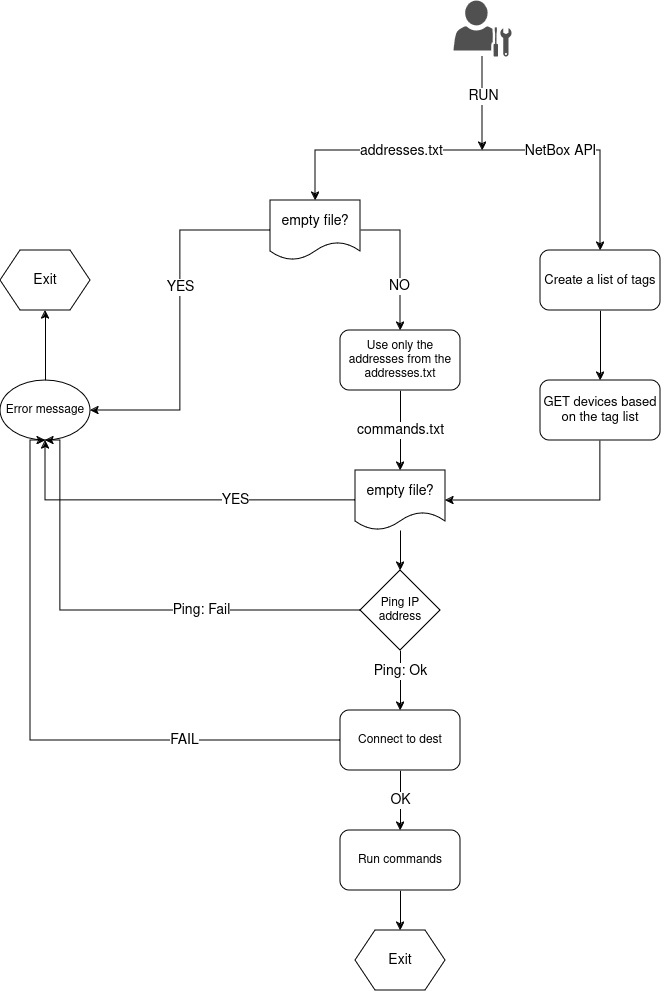
When we run this script, we first need to specify the user that the script will use to connect to every device and make changes. After we set the username, we have two options: using the IP addresses from the addresses.txt file from the config directory or using the NetBox APIs. As optional, we can use --createUser to use the function explicitly designed for creating users in this scope.
Using addresses.txt
Firstly, the script will check if the file is empty or not. If the file is empty, an error will be displayed, and the execution of the script will be terminated. If there are IP addresses in this file, we will use all these addresses. The file needs to look like this:
1
2
3
192.168.0.25
192.168.0.26
192.168.0.27
Using NetBox APIs
We will be asked to select one option from “Cisco”, “Huawei”, or “Custom Tag.” If we select the Cisco option, using the APIs, the script will get all devices with the tag cisco_device, and the same for Huawei - huawei_device. However, we can specify some custom tags if we want to make changes only on the devices from building X and Y but not Z. We need to ensure that these tags already exist on the NetBox and the devices have been assigned with our desired tag.
1
2
3
4
5
6
7
8
[i] NetBoxAPI categories:

     [1] Cisco Devices
     [2] Huawei Devices
     [3] Custom tag

     > 3
[i] Enter a list of tags (comma-separated): Nor-A,Siz-C
Now that we have all the necessary devices, we need to check if the commands.txt file is not empty. All the commands in this file must be in the correct order, as we would run them manually.
1
2
3
4
5
6
7
conf t
interface vlan 20
ip address 10.0.0.2 255.0.0.0
no shutdown
exit
exit
write
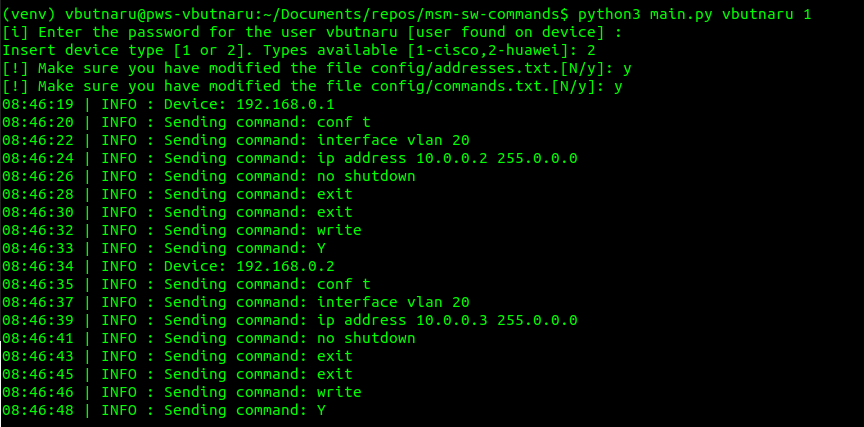
For every IP Address, we will check if the device is up and running and try to connect to it. If we successfully connect, we will push every command from the commands.txt file.
Create users
If you want to create users on the device, you can use the createUser argument. This argument requires the number of users to be created to be found on the following position: --createUser 3 We will need to enter the names of the users, and finally, we will need to enter the password for each user (the password entered will not be visible).
1
2
3
4
5
6
7
User 0 : testuser1
User 1 : testuser2
User 2 : testuser3
14:08:19 | INFO : Enter the password for each user
Password for testuser1 :
Password for testuser2 :
Password for testuser3 :
The script is currently not available as a public project in Git. Someday it will be made public, and I will add a link here.